![apifon-full-lock-up-purple-1.png]](https://kb.apifon.com/hs-fs/hubfs/apifon-full-lock-up-purple-1.png?height=40&name=apifon-full-lock-up-purple-1.png)
You can view and manage your subscribers by navigating to Subscribers > Lists.

Here, you can add, edit, archive, and permanently delete subscribers.
Add & Edit Subscribers
You can add subscribers to your list with one of the methods below:
- Add: Click
 Add to manually type all the information for a new subscriber and add them to your list. Click on an existing subscriber to edit their information.
 - Import: Upload a file with all your subscriber data to add or update your subscribers.
- Forms: Let your audience subscribe to your list via a public online form or update their information via personalized forms.
- API Integration: Sync a list from your system to the Apifon platform.
The destination (Μobile/Εmail) is the core information for a subscriber. It cannot be edited, deleted, or duplicated.
Archive Subscribers
Archiving is a reversible action that removes a subscriber from your audience.-
Archived subscribers do not count toward your billing.
-
You can view and restore archived subscribers at any time.
To archive a single subscriber, click on a subscriber, choose Delete, and then  Archive.
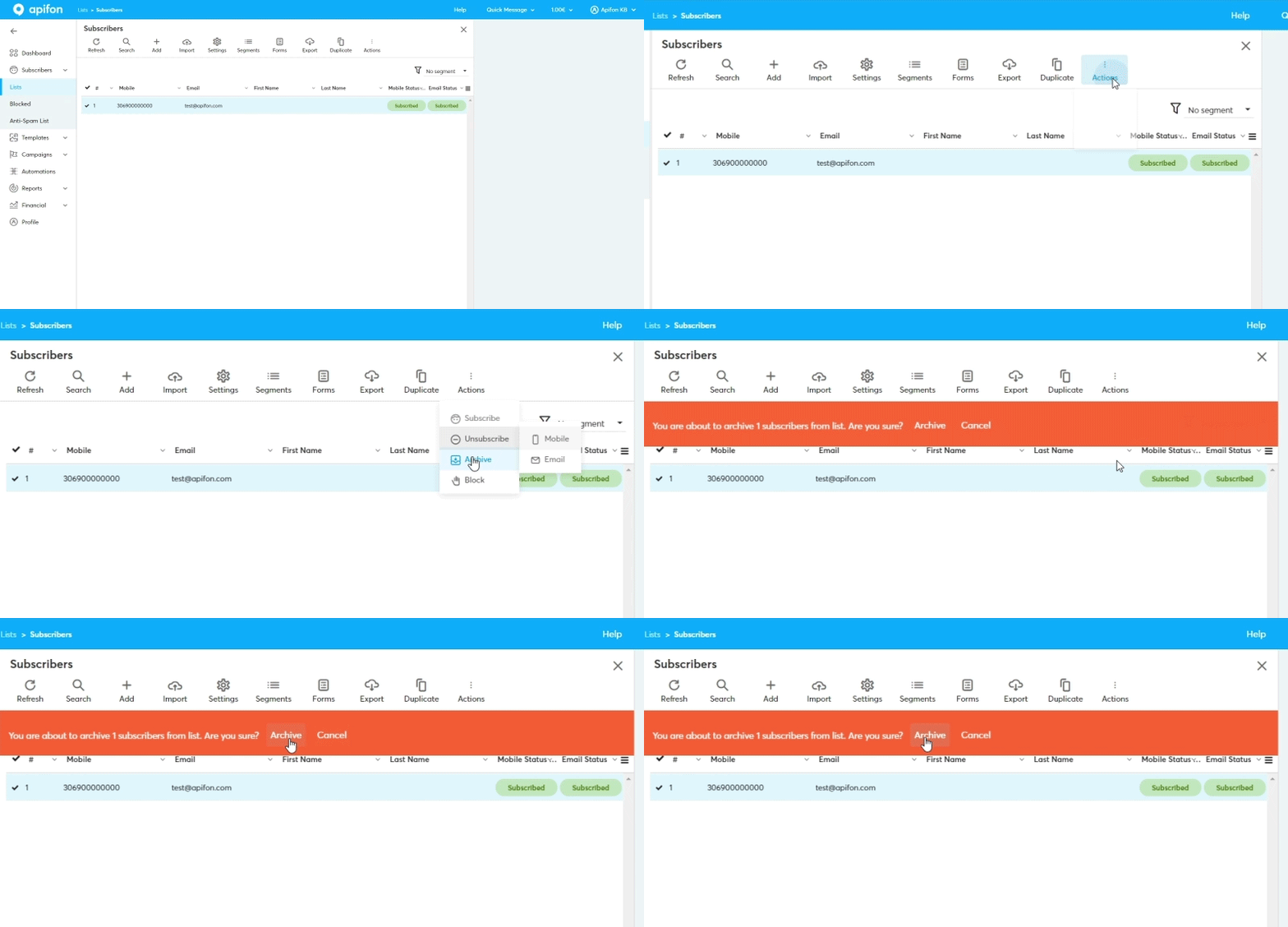
To archive multiple subscribers from your list, follow the steps below:
- Mark the subscribers. Click on the check icon
 on the left to select each subscriber, or click next to the hash symbol
  to select them all.
 - Click
 Actions > Archive.
 - Confirm Archive.
View and Restore Archived Subscribers
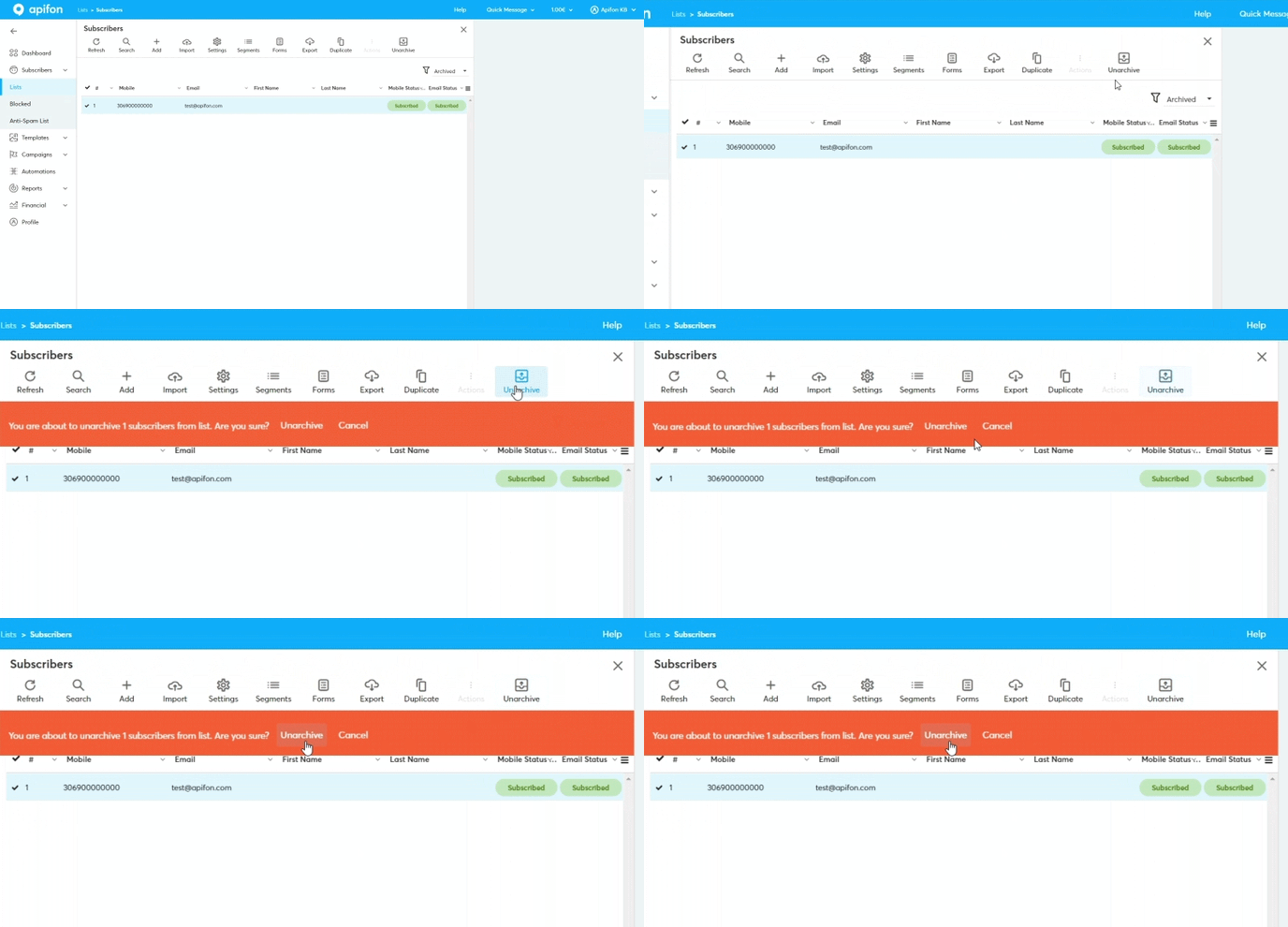
To view archived subscribers, click on the Segment Filter  and choose Archived.
To restore a subscriber and restore them to your list, follow the steps below:
- Find them in the Archived segment.
- Mark them from the check icon on the left.
- Click
 Unarchive.
 - Confirm Unarchive.
Delete Subscribers
Deleting a subscriber is a permanent action that removes the subscriber and all associated data from your list.
-
After deletion, the subscriber can only rejoin your list by submitting a new Signup Form.
-
Deleted subscribers cannot be re-imported.
-
If you attempt to manually add a previously deleted subscriber, a warning will appear asking you to confirm that you have permission.
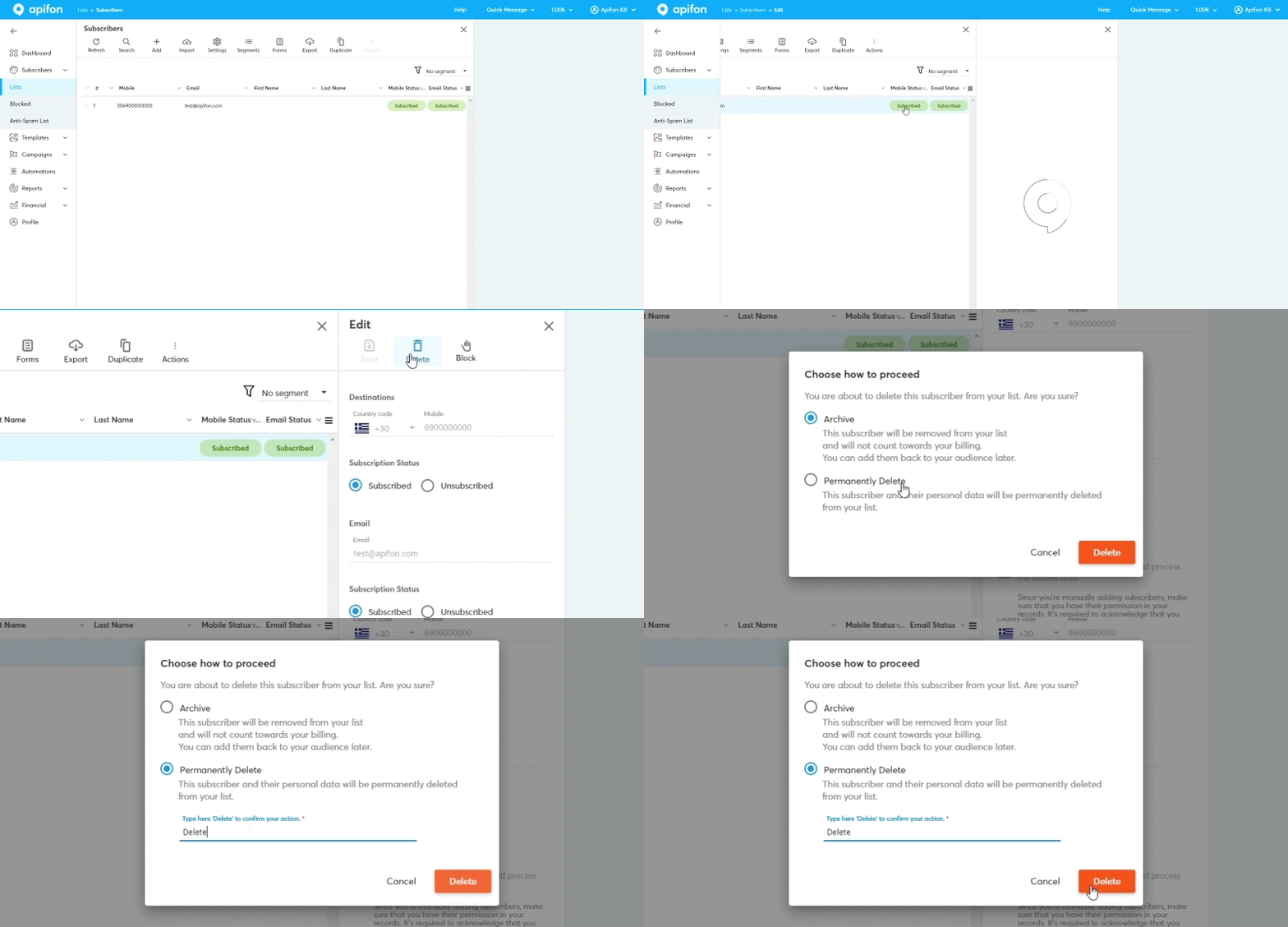
To permanently delete a subscriber, follow the steps below:
- Click on the subscriber.
- Click
 Delete.
 - Choose Permanent Delete.
- Type the word Delete to confirm.
- Click Delete.
Now you know how to manage your subscribers on the Apifon platform. 🚀
Thank you for reading!